
Claygent is Clay’s AI research agent. You write a prompt, pass it values from a table row, and it browses the web and writes the answer into a cell.
It fits data that no provider sells, such as how a company prices its product or whether it is hiring a head of sales. Because every row is a fresh web search, cost and accuracy depend on how you write the prompt, so this guide spends most of its time on prompts and prices.
What is Claygent?
Clay describes Claygents as agents that take inputs, follow your instructions, and write a structured output. In practice it is an AI column that can use the internet.
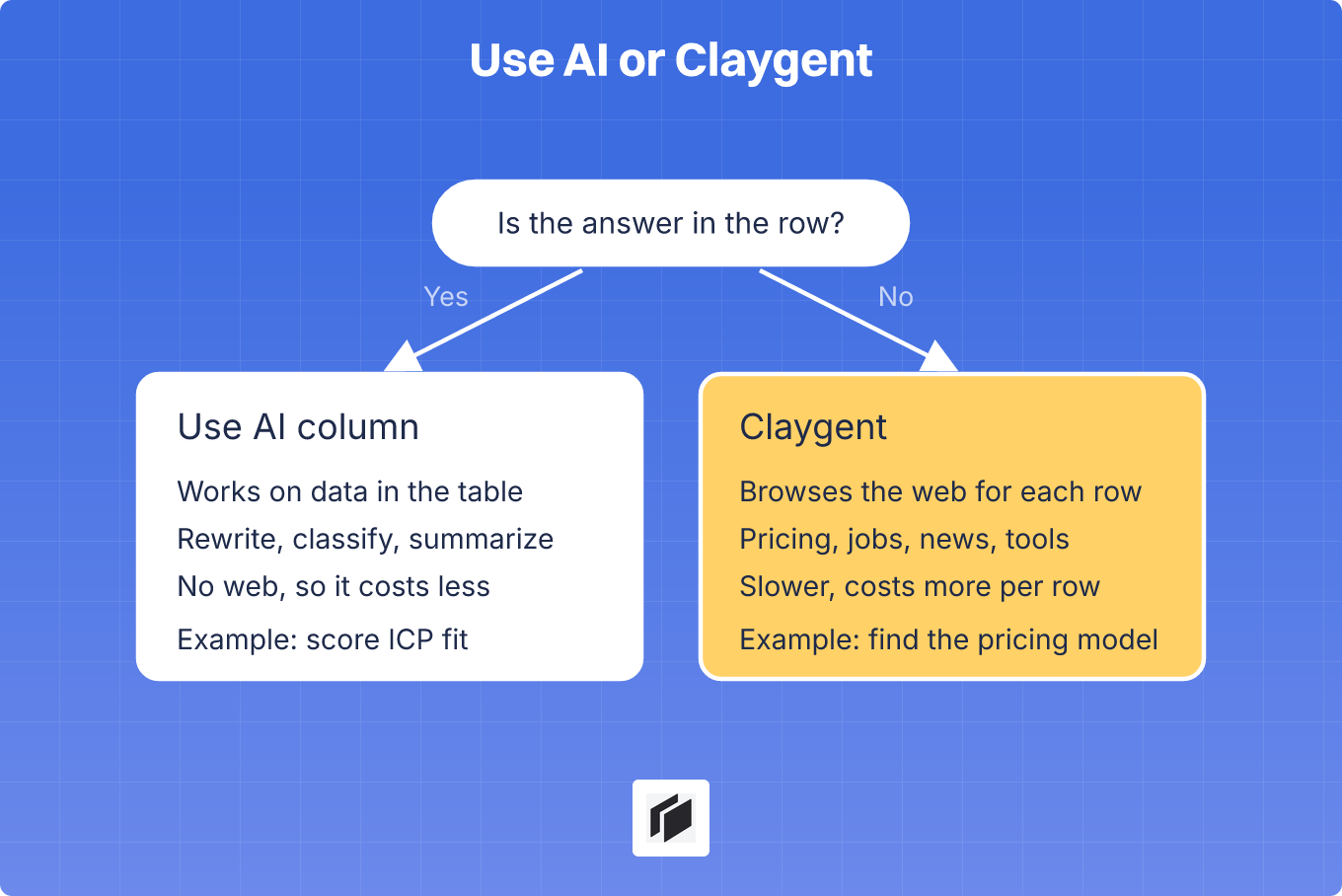
The difference from Clay’s “Use AI” column is web access. “Use AI” works on what is already in the row, for example to rewrite, classify or summarize. Claygent can open a homepage, read a pricing page or scan a careers page. Use Claygent when the answer is not in your table yet, and “Use AI” when it is. “Use AI” also costs less to run because it skips the web.
Clay lists four jobs customers run most often: account research and meeting prep, bespoke data that no provider covers, personalized outbound written from what the agent found, and scoring against criteria specific to your business. For data that providers do sell, such as emails and phone numbers, see our guide to Clay enrichment .
How Claygent works
You start from a prompt with variables. A variable is a column of your table, such as the company website or the contact’s title. For each row, Clay fills the variables, runs the agent and writes the result into a new column. The output can be plain text or a structured answer that splits into typed fields.
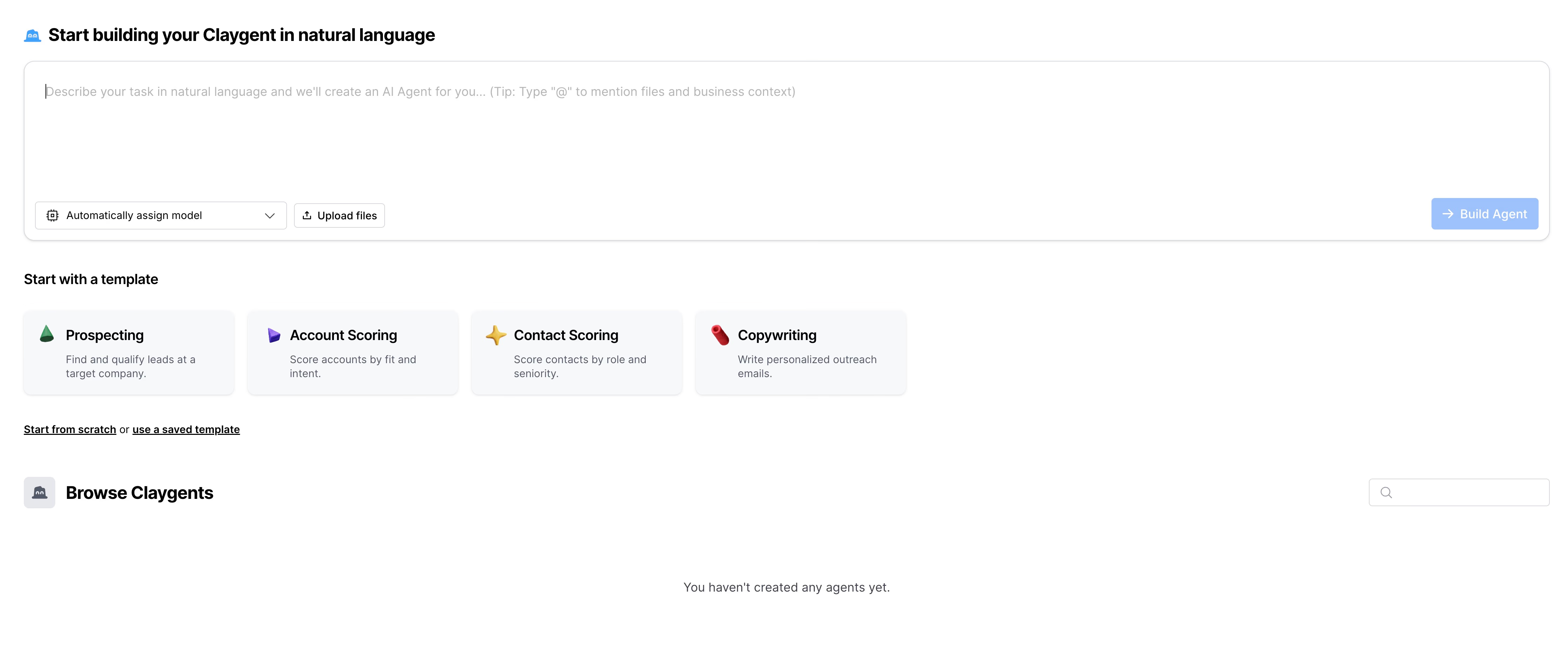
Agents are now built in Claygent Builder, where you define an agent once and deploy it to any table. You describe the task in plain language and Sculptor, Clay’s assistant, drafts the prompt, variables and output format. Business context from your workspace settings, such as your ICP, flows into the prompt, and every change is saved in a version history that updates the agent in all tables using it.
Two settings matter most:
- Web search. Clay recommends turning it on for live research such as recent news or hiring signals, and off when the agent works from data already in the table, because runs are then faster and more consistent.
- Model. New agents start on Auto, which routes simple lookups to a cheaper model and harder research to a stronger one. You can also pick a frontier model such as Claude or GPT, an open-weight model, or one of Clay’s own, Neon, Helium and Argon.
You can test an agent on up to 10 inputs, and Clay does not charge credits for those tests. Run those 10 before any run that costs credits.
Clay also sells Account Agents, in beta, which run across every account in a segment and keep memory between runs. For a lead list in a spreadsheet, the general-purpose agent described here is the one you will use.
Claygent pricing
Each Claygent run uses one Action per prompt, plus Data Credits that depend on the model. For web research Clay publishes a flat rate for two of its models: Helium costs 1 Data Credit per row and Argon costs 3. Reasoning models from other labs and Auto are billed at variable rates, so you only learn the price by running rows. Credits start at $0.05 each, and the Clay pricing guide covers the plans.
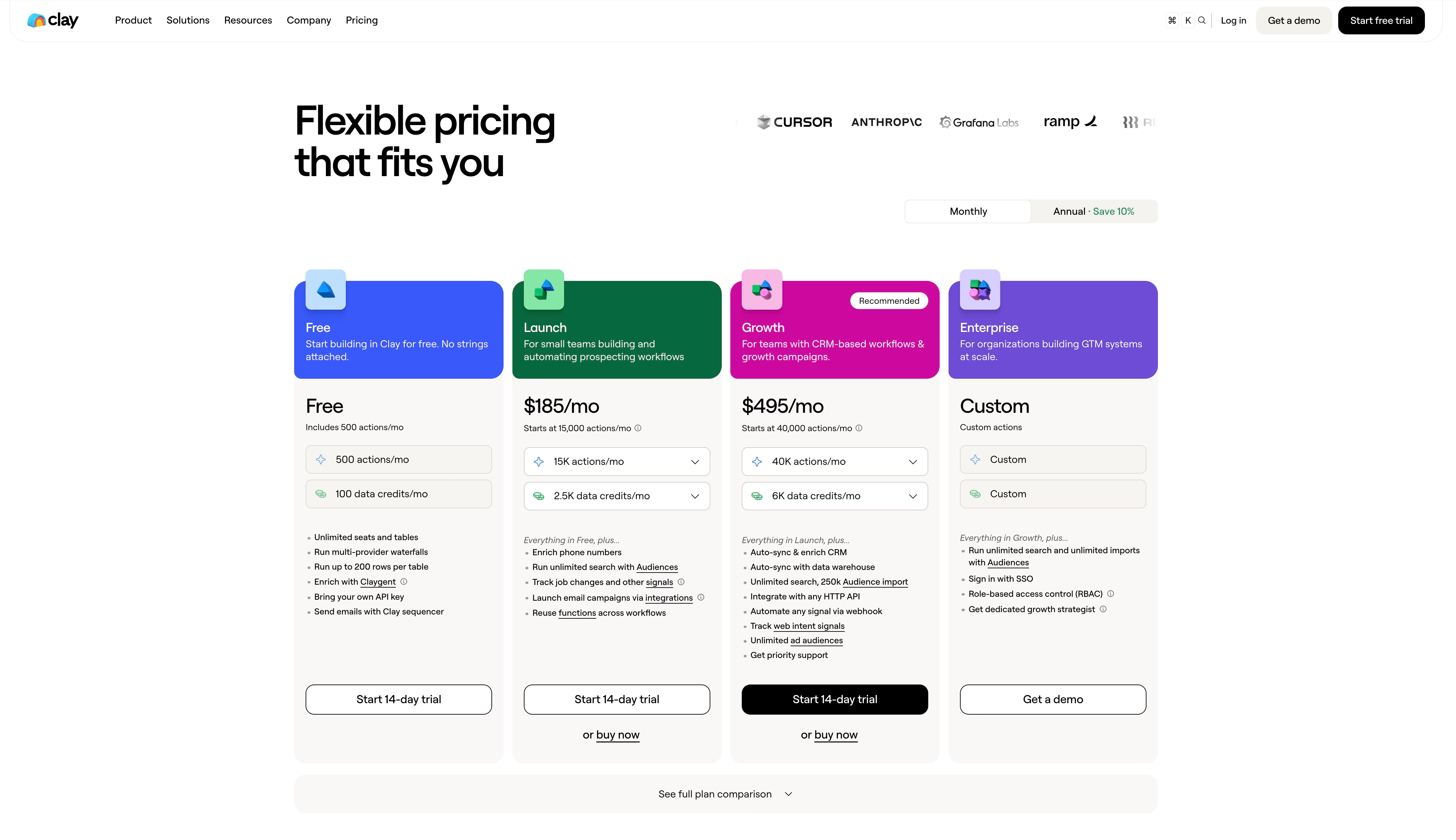
As a rough guide (prices checked in November 2026), 1,000 rows on Helium use 1,000 Data Credits and 1,000 Actions, which is about $50 of credits at the lowest published rate. The same run on Argon uses three times the credits. The free plan includes 100 Data Credits and 500 Actions a month, enough to try a few dozen rows.
If you connect your own API key, Clay’s docs say the AI usage is billed by your provider instead of through Clay credits, and that an Action is still consumed. Messy lists cost the most, since some rows resolve from one page and others take several rounds of searching. Clay itself advises running 10 or 50 rows first and reading the charge per row.
Claygent prompts you can copy
The prompts assume a table with columns called Company and Website, so replace the names in square brackets with your own columns. Each one asks for a single answer in a fixed format, with a way out when the agent finds nothing. Turn web search on for all of them except the ICP prompt, which can run without it.
Find a company’s pricing model
Visit [Website] and find the pricing page.
Classify the company's pricing model as exactly one of:
- free: the product is free to use
- freemium: a free plan exists and paid plans are listed
- self-serve paid: prices are listed and you can buy without talking to anyone
- sales-led: the page says contact sales or book a demo instead of showing prices
- unknown
If there is no pricing page, return unknown. Do not guess.
Also return the URL of the page you used.

Output format:
model | source URL
Example: freemium | https://example.com/pricing
Check whether a company is hiring for a role
Check the careers page of [Company] at [Website]. If jobs are hosted on another site such as Greenhouse, Lever or Ashby, follow the link.
Is the company hiring for a sales role, such as SDR, AE or head of sales?
Return yes or no, the matching job titles, and the URL of the job listing.
If there is no careers page, return no careers page.

Output format:
yes/no | job titles separated by commas | URL
Example: yes | Account Executive, SDR | https://example.com/careers/ae
Find the tools a company uses
Find which of these tools [Company] uses: HubSpot, Salesforce, Intercom, Segment.
Look for evidence on [Website] (footer badges, integrations page, customer stories)
and in the company's job listings (required experience).
Only list a tool if you found direct evidence, and quote the evidence.
If you found none, return none.

Output format:
tool: evidence (URL) on one line per tool
Example: HubSpot: "Experience with HubSpot required" (https://example.com/careers/rev-ops)
Check ICP fit
Our ICP: B2B SaaS companies with 10 to 200 employees that sell to other companies.
Read the homepage of [Website] and decide whether [Company] fits.
Score from 1 to 5: 5 = clearly B2B SaaS in the size range, 3 = B2B but not clearly SaaS or size unclear,
1 = consumer product or far outside the size range.
Return unknown if the site does not say what the company sells.
If you do not know the team size, say so in the reason instead of estimating it.

Output format:
score | reason
Example: 3 | Sells project management software to agencies, but team size is not stated on the site.
This one also works with web search off if your table already holds a company description, which makes it cheaper.
Find recent news or funding
Today's date is [Today]. Search for news about [Company] published in the last 6 months,
limited to funding, acquisitions, a new product launch or a leadership change.
Return the single most relevant item for a B2B sales team.
If nothing from the last 6 months exists, return none.

Output format:
headline | date (YYYY-MM-DD) | URL
Example: Raises $12M Series A | 2026-09-14 | https://example.com/news
Add a column holding today’s date and use it as [Today], because models do not reliably know it.
Write a personalization line
Read the homepage and blog of [Website].
Write one opening line for a cold email to [First name], [Job title] at [Company].
Reference one specific thing that is on the site, such as a product page or a recent blog post, and mention its date or title.
Maximum 25 words. No flattery, no questions.
If you cannot find anything specific, return none instead of inventing something.

Output format:
the line, or none
Example: Read your post on moving onboarding to self-serve, curious how that changed your sales calls.
For more on turning research into emails, see our guide on personalizing cold emails at scale .
Habits that make these work
Most bad Claygent output comes from a prompt that asks for too much, too loosely. A few rules fix most of it.
- One question per column. Three answers in one cell have to be verified together, while three columns can be filtered separately.
- A fixed output format and an unknown option. Without one, the agent may fill the gap with something plausible.
- A source URL. It turns verification into one click.
- A starting point. Pass the website or LinkedIn URL from the row so the agent does not spend steps finding the right site.
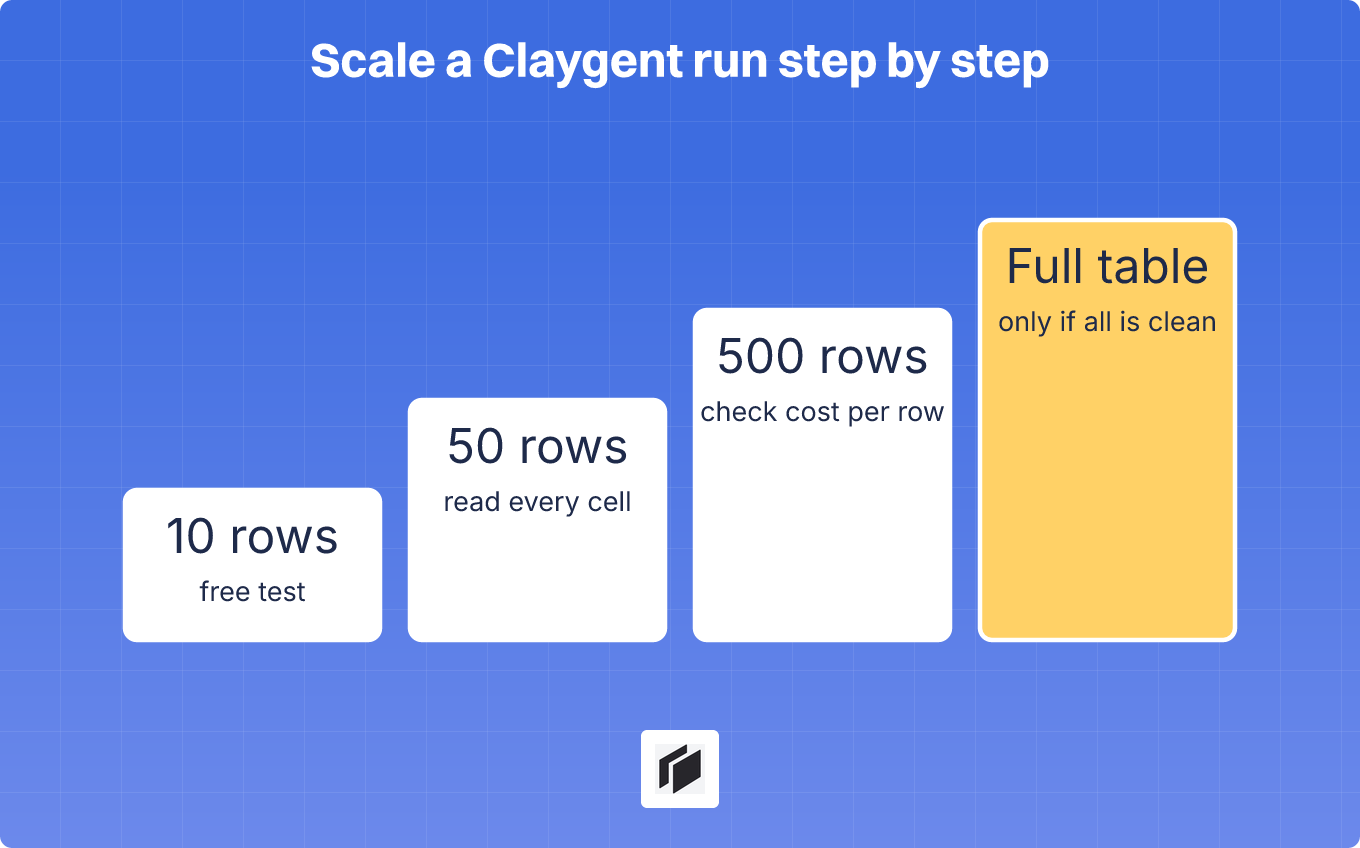
- A test ladder. Clay University suggests 5 to 10 rows, then 50, then 500, reading every cell at each step.
Clay University also advises running a row only when it can produce something you need. Filter out rows with no website before a web research column, and you save the credits those rows would burn.
Limits of Claygent
Treat Claygent as a research assistant, not a source of record.
- It can be wrong with confidence. A thin page or a lookalike company can produce a plausible wrong answer. Fixed formats, an unknown option and source URLs reduce this, and spot-checking catches the rest.
- It is slower than a lookup. An agent that opens and reads several pages takes longer than a database call.
- Cost grows with volume. Variable pricing and a credit meter per row make large runs expensive, and messy lists cost the most.
- Everything needs verification before you send. An email that cites a launch that never happened costs more than the credit you saved, so read a sample of outputs before exporting.
Claygent alternatives
Several tools can run an AI research prompt on every row of a list. They differ in how much you build and what you pay.
| Tool | AI research approach | Pricing model | Best for |
|---|---|---|---|
| Clay Claygent | Agent builder, Sculptor, Auto model, Account Agents | Data Credits plus Actions, from $185/mo | Teams that want the most control and have someone to build it |
| Clay “Use AI” | AI column on data already in the table, no web | Credits, cheaper per row because there is no web | Classification and copywriting |
| Cockpit | AI Web Agent and AI Answer columns in a spreadsheet | Credits, from $29/mo | Founders and small teams |
| Persana | AI agents, templates and playbooks on 100+ data providers | Credits, from $68/mo billed annually | SaaS sales teams that want ready-made playbooks |
| Databar | AI research agents that crawl prospect sites, plus 80+ enrichment APIs | Credits, $99/mo for 5,000 | No-code enrichment and scraping |
| ChatGPT or another agent on a CSV | General-purpose agent working through a file | Your AI subscription or API | One-off lists of a few dozen rows |
Persana and Databar figures come from our Clay alternatives roundup, and plan prices change often. A general-purpose agent is fine for a one-off list of a few dozen rows. For a list that keeps growing, a table is easier to re-run on new leads and to export to your sequencer.
Cockpit’s AI research columns
Cockpit is a spreadsheet where you import leads from LinkedIn, Google Maps, a CSV or your CRM, enrich them, run AI on every row and export to Lemlist, Instantly, Smartlead or your CRM.
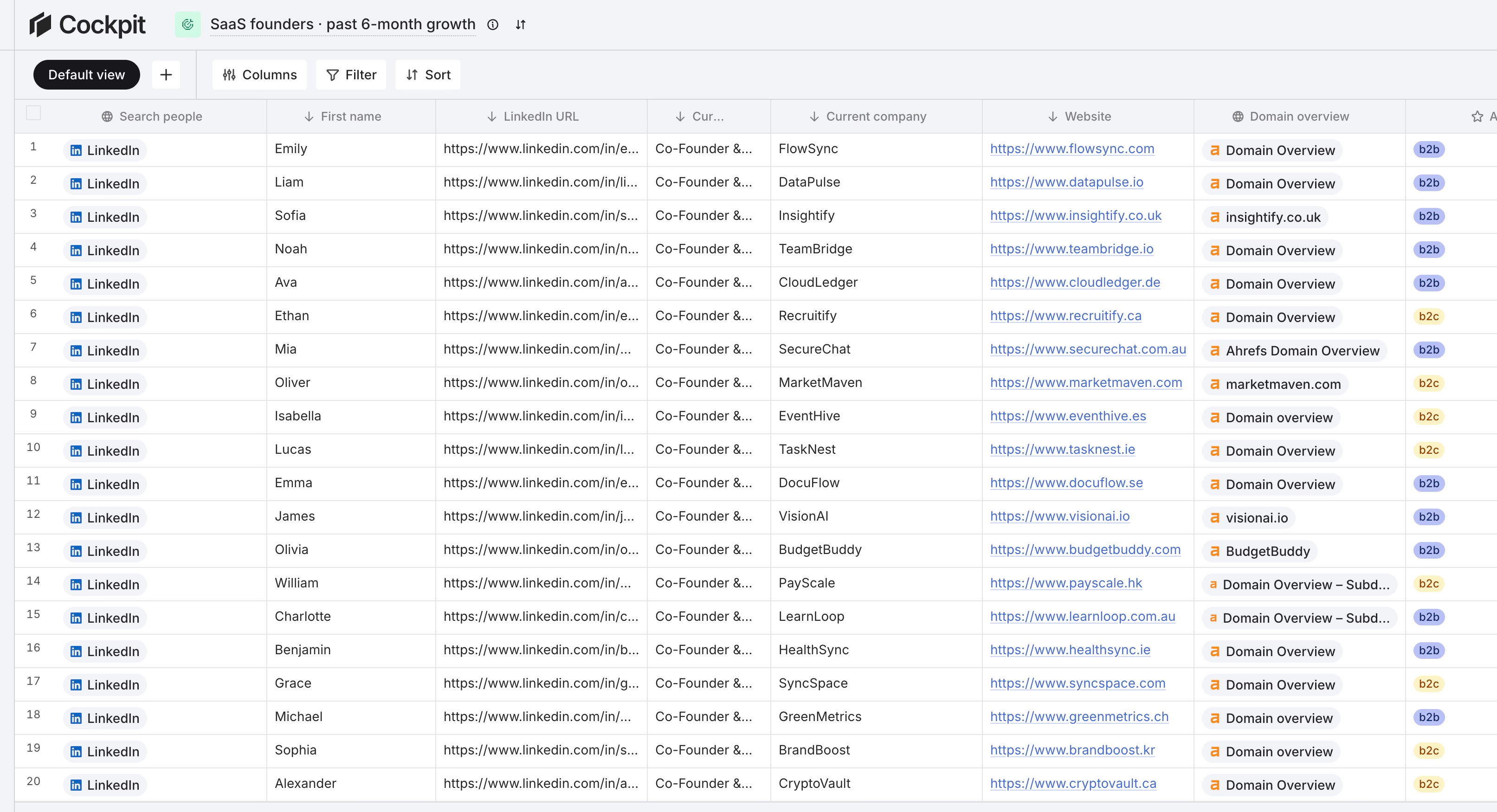
It has two columns for Claygent’s job. The AI Web Agent runs a real browser on each row, so it can visit sites, click through pages and extract data into a typed output such as a checkbox or a select. You give it instructions with mentions of other columns and an optional start URL, and each run keeps the visited URLs and screenshots for debugging. The AI Answer column runs a prompt on a model you choose, with an optional web search toggle. The prompts above work in both.
Plans are $29 per month for 3,000 credits, $79 for 10,000 and $199 for 30,000, with a 14-day trial, and you only pay for successful calls. The AI research columns use case shows the setup, and our Clay review covers how Clay handles the rest of the workflow.
Cockpit has no agent builder, no assistant like Sculptor, no shared skills and no prompt version history, and it has 27 enrichments against Clay’s 150+ providers. If you manage reusable agents across many tables, Claygent is the stronger tool. If you are a founder or a team of one to three who needs research columns on a lead list, Cockpit is quicker to set up.
FAQ
What is Claygent?
Claygent is Clay’s AI agent for research. It takes values from a table row, follows your prompt, browses the web when web search is on and writes a structured answer into a cell.
How much does Claygent cost?
Each run uses one Action plus Data Credits. For web research Clay lists 1 credit per row for its Helium model and 3 for Argon, so 1,000 Helium rows are about $50 of credits at $0.05 each. Reasoning models and Auto are variable, so read the charge on a small test first.
Is Claygent free?
Claygents are available on every plan, including the free plan with 100 Data Credits and 500 Actions a month. Testing an agent on up to 10 inputs in Claygent Builder does not cost credits.
What is the difference between Claygent and Use AI in Clay?
“Use AI” works on data already in the table, for tasks like copywriting or categorizing. Claygent can use the web, so it fits research that needs live information, and it costs more per row.
Can Claygent hallucinate?
Yes. Any agent can return a plausible answer from a thin or wrong page. Allow an unknown answer, ask for the source URL, use a fixed output format and spot-check results before you export.